
No import. No library to rebuild. Open a folder and start looking.
Your photographs already have a home.
Every subfolder.
Together.
Include subfolders to bring the whole collection into one grid. Narrow it with the folder tree, or search by filename and folder path. Your files stay exactly where you put them.
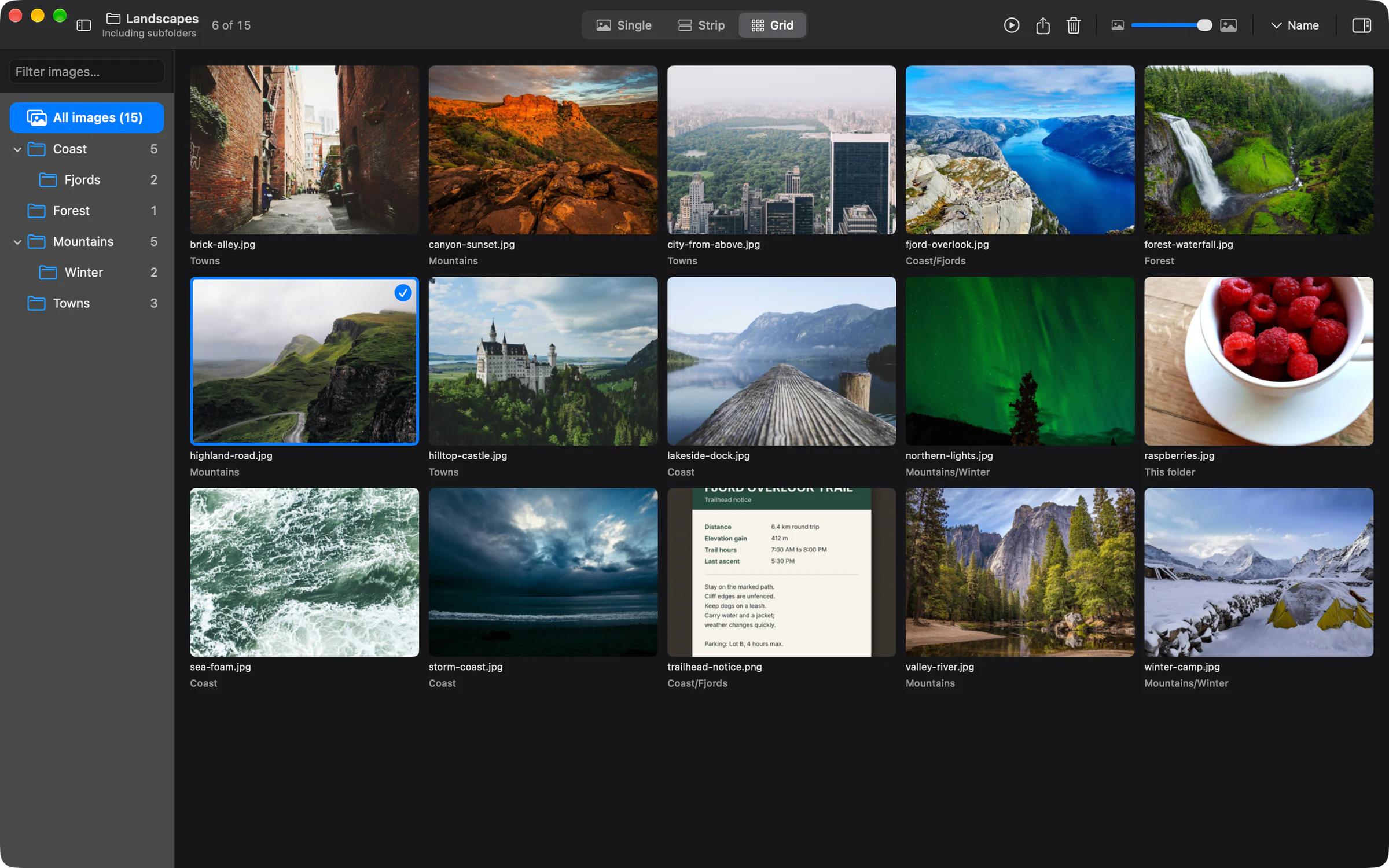
Pick up where you left off. StillView restores your last accessible folder and viewing choices.
Added or edited files? Refresh the folder with ⌘ R.
See the image.
Read what’s in it.
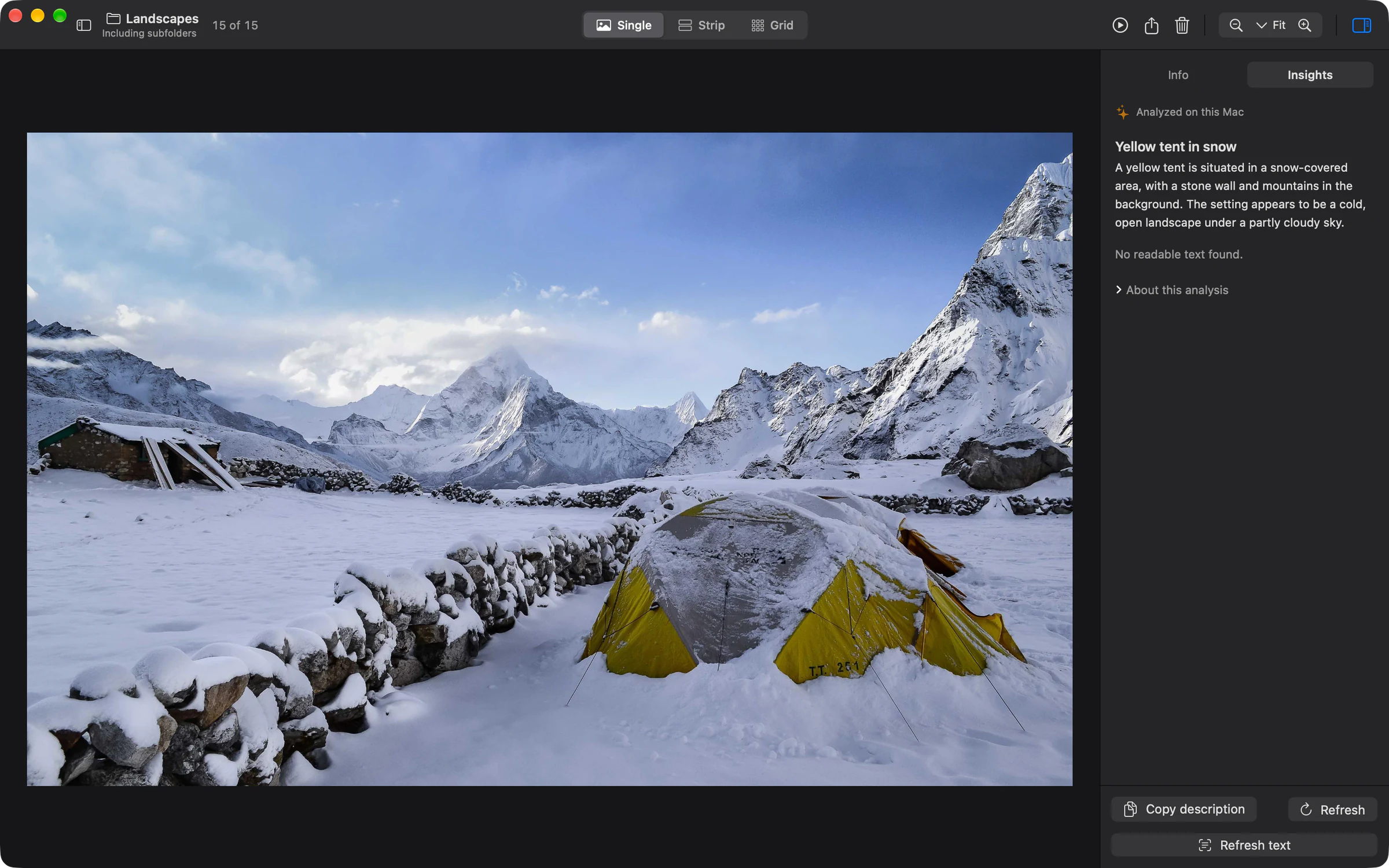
Descriptions and text recognition, processed on your Mac. No images uploaded to an AI service.
A little more context.
Ask Apple Intelligence for a short description of the visible subject and scene. The updated descriptions focus on what’s in the photograph, without using filenames or camera metadata.
Optional. Requires Apple Intelligence enabled and its on-device model ready. AI descriptions can make mistakes.
From image to usable text.
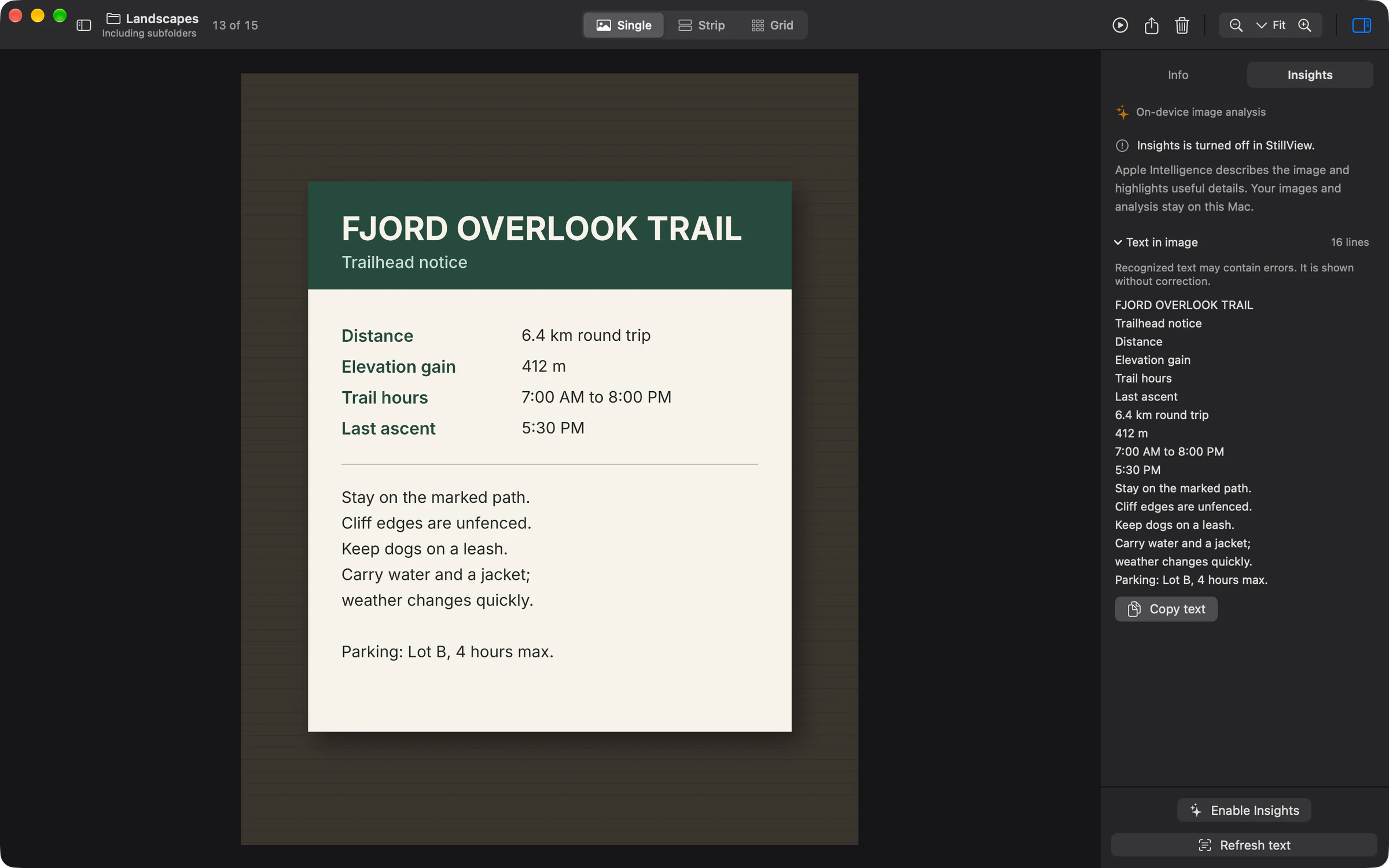
Extract words from a screenshot, document, or photographed sign. Review the recognized text in the inspector and copy it to use elsewhere.
Powered by Apple’s Vision framework. OCR works even when AI descriptions are off or Apple Intelligence is unavailable.
A closer look.
At your own pace.
Single, Strip, or Grid. Fit the image to your window, inspect actual pixels, or settle into a fullscreen slideshow.
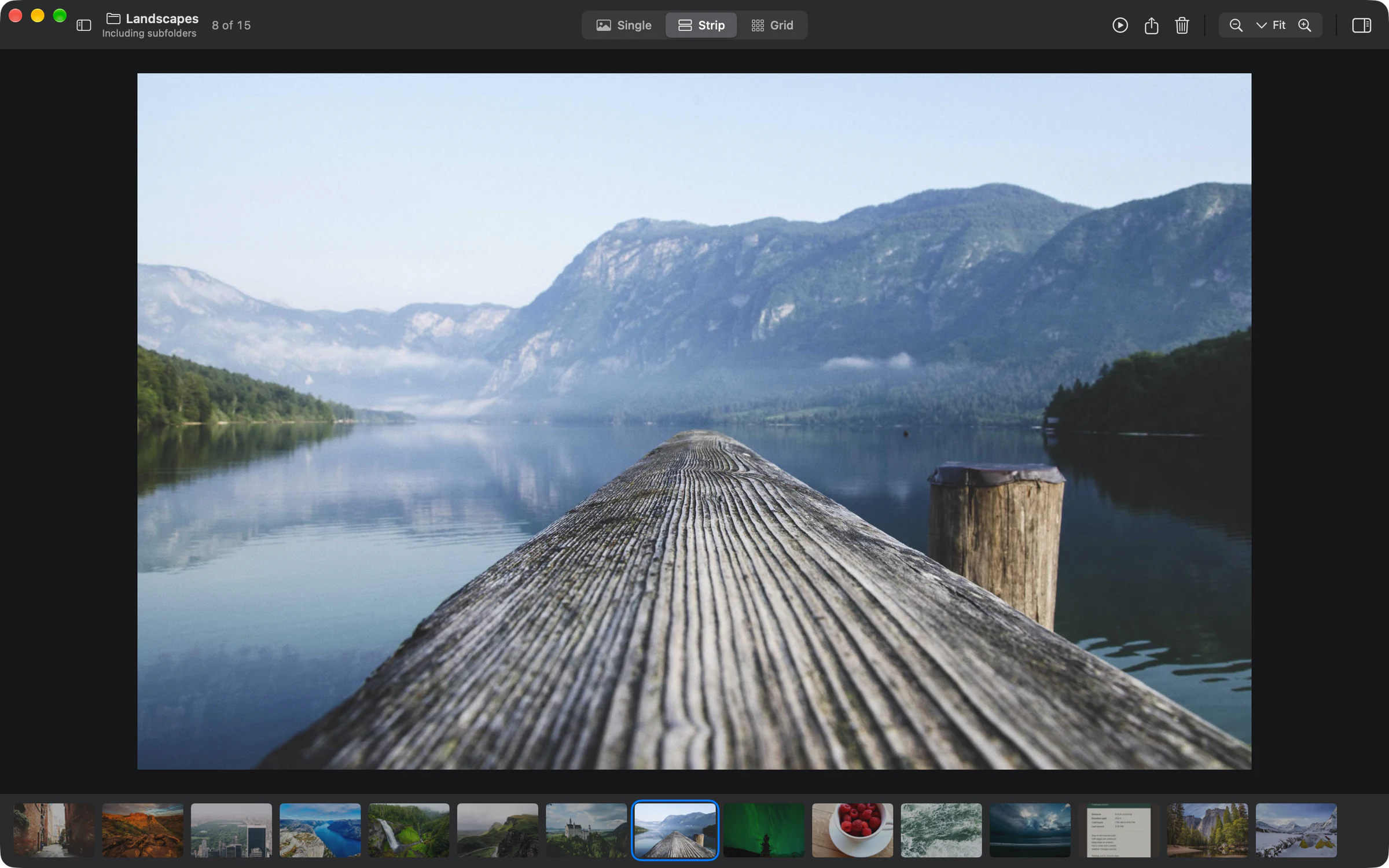
Navigate with arrow keys. Adjust thumbnail size and sorting. Keep the photograph at the center of the window.
The story behind the frame.
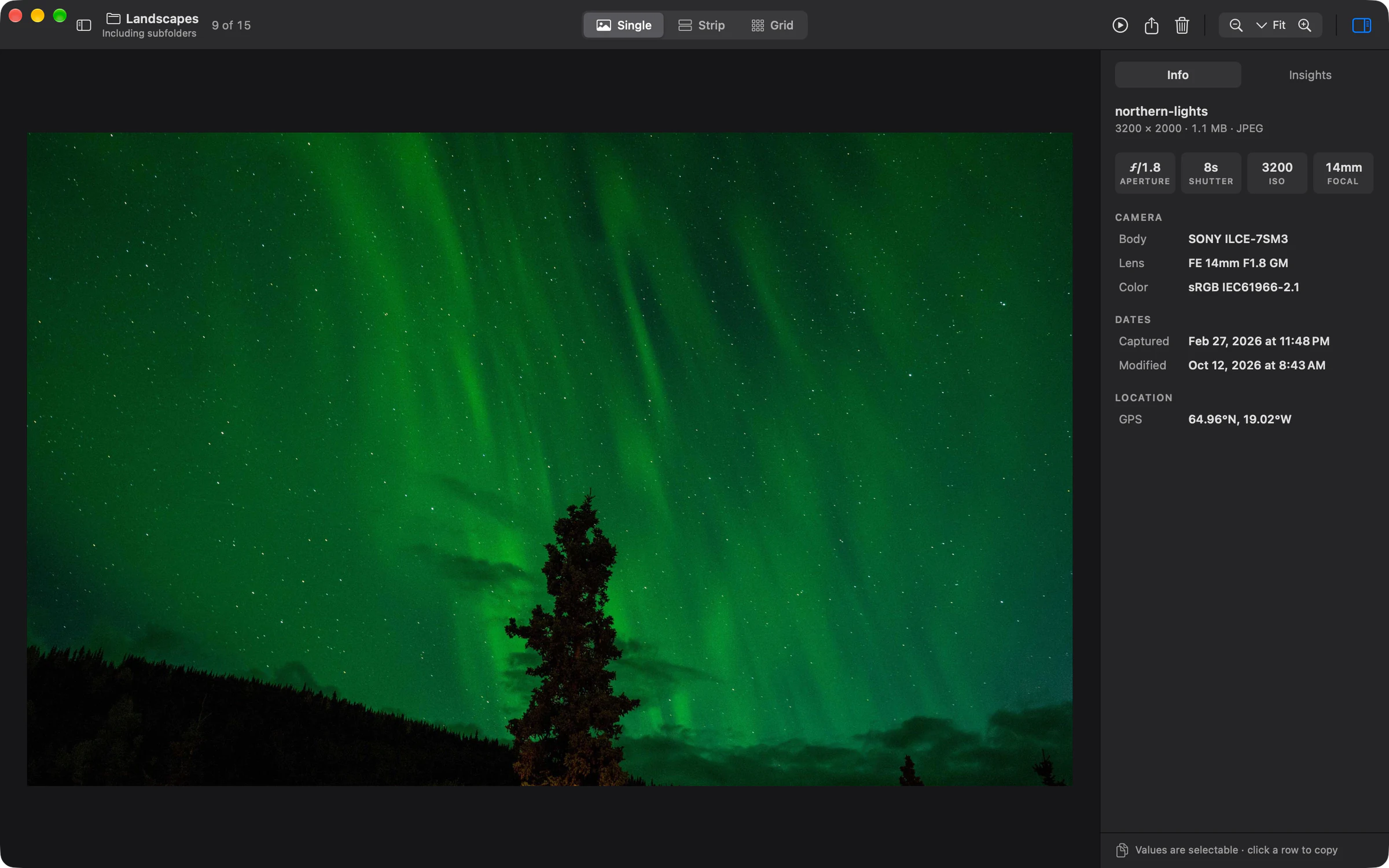
Inspect dimensions, camera, lens, exposure, dates, and GPS when available. Click a metadata row to copy its value.
Before you open
that first folder.
Free. Open source. No account. No tracking.
Explore the source on GitHubWhat does my Mac need?
StillView requires macOS 27 or later on a Mac with Apple silicon. AI descriptions also require Apple Intelligence to be enabled and its on-device model ready. Text recognition works independently of those AI settings.
Are my photos uploaded?
StillView reads your folders in place. AI descriptions and text recognition run on your Mac, with no cloud fallback. Sharing a photo uses the macOS service you choose. Read the privacy policy.
Which image formats can I open?
JPEG, PNG, HEIC and HEIF, WebP, GIF, TIFF, and BMP. Animated GIF and WebP files show their first frame; multipage TIFF files show their first image.
Can I browse a whole folder tree?
Yes. Turn on Include Subfolders for one collection across your selected folder and its descendants. Use the folder tree to filter a branch, and search by filename or relative path. Refresh with Command-R after files change.
How accurate are descriptions and recognized text?
Both can be incomplete or incorrect. Review the results before using them. Text recognition shows the words it detects without rewriting them; AI descriptions do not identify people.

Still here. Still yours.
FREE · OPEN SOURCE · NO TRACKING
Download on the Mac App StoreApple silicon · macOS 27 or later